Find Your Steam 64 ID
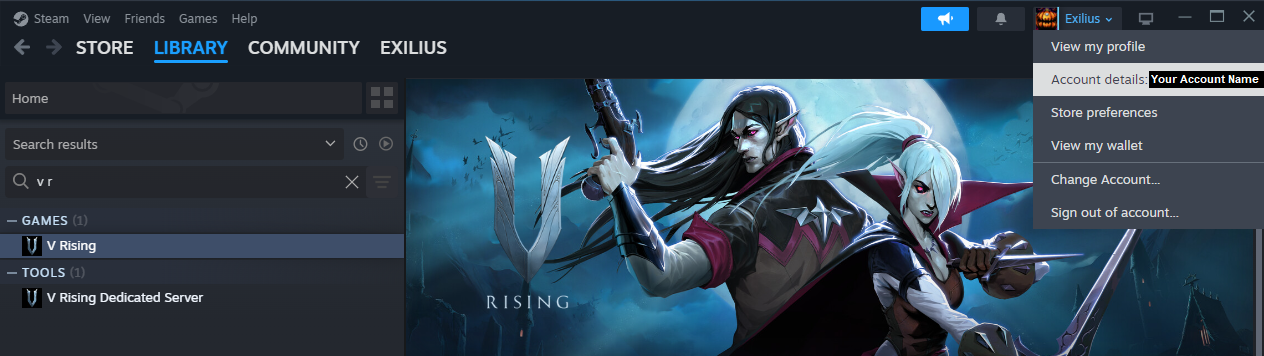
Open Steam and click on your name in the top-left corner.
In the dropdown menu, select Account Details.In Steam Click on your Name in the top left corner, this should open a dropdown where you can select your Account details.
Copy Your Steam 64 ID
In the Account Details section, locate your Steam 64 ID.
Copy the Steam 64 ID, as you will need it to assign admin rights.

Locate the Adminlist File
Navigate to your server’s directory and find the following path:
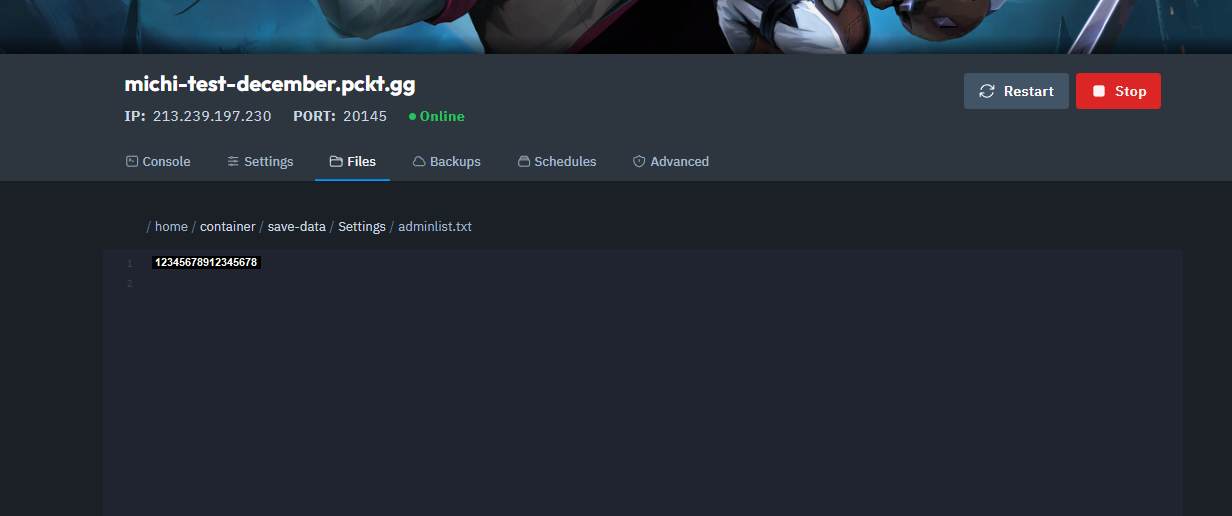
/save-data/Settings/adminlist.txtOpen the adminlist.txt file.
Add Your Steam 64 ID to the Adminlist
Paste your Steam 64 ID into the adminlist.txt file.
To add multiple admins, write each Steam 64 ID on a new line.
Save the Adminlist
Once you’ve added the necessary IDs, save the adminlist.txt file.
Open the Developer Console in Your Server
Launch your V Rising game and connect to the Server.
Open the developer console by pressing:
` (the backtick key) on US keyboards.
§ (Shift + 3) on EU keyboards.
If you can’t open the Developer Console check your General Settings in the Game if the box is ticked.
Authenticate as an Admin
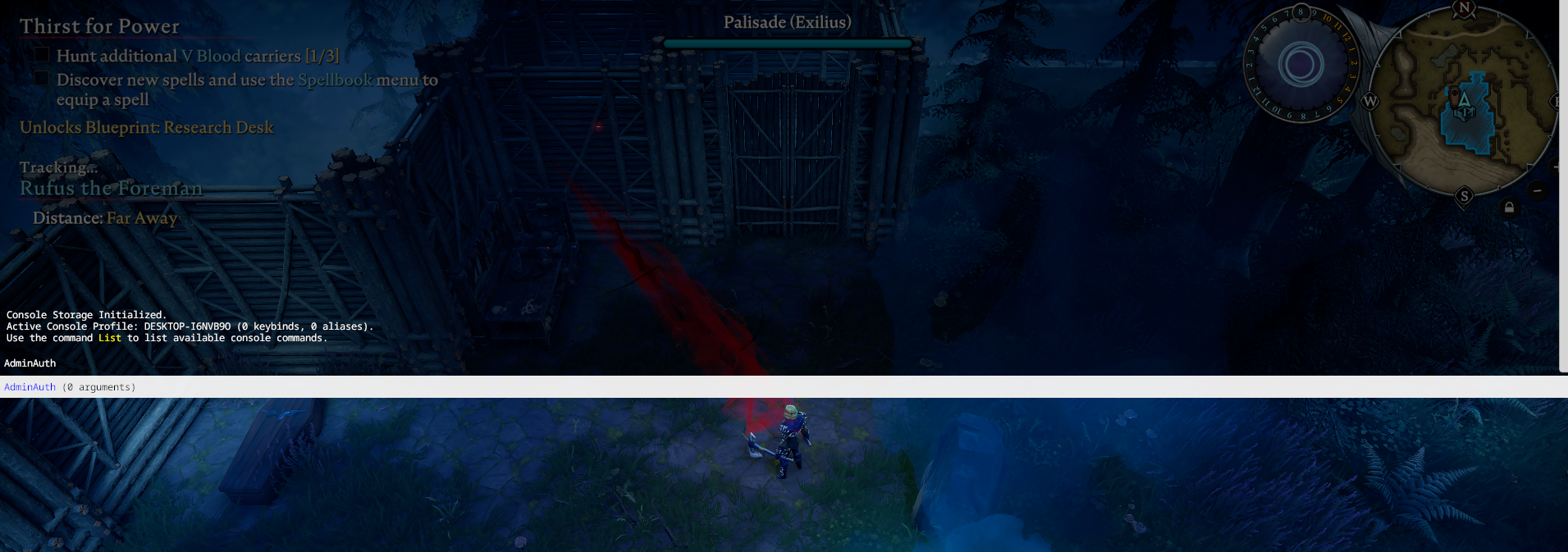
In the developer console, type the following command:
adminauthPress Enter.
8. Confirm Admin Status
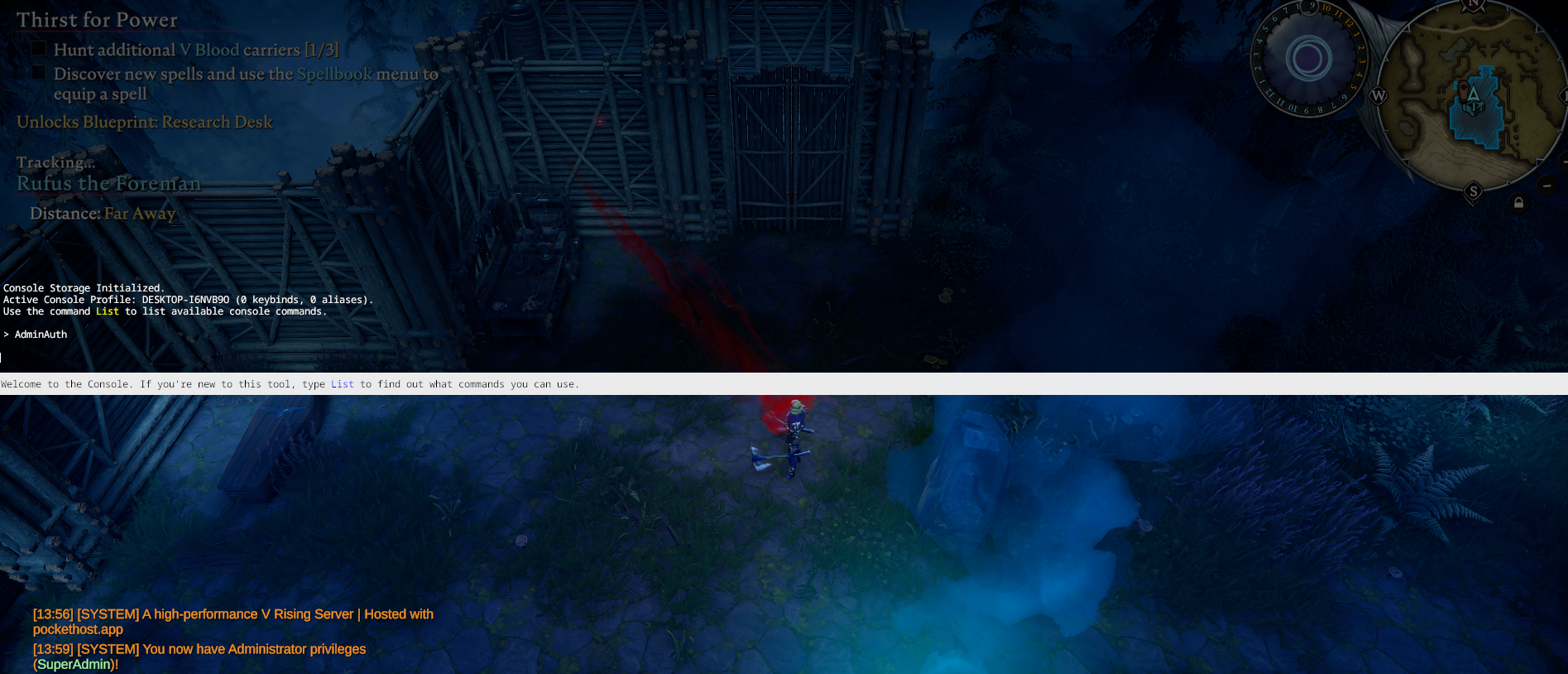
If the process was successful, you will see a confirmation message in the server chat.
And that’s it! You now have admin rights on your V Rising dedicated server.