Step-by-step: Move a local world to your hosted server
Locate your local save (PC/Steam)
Open: Pal\Saved\SaveGames\ → then 0\ or in my case it was: 76561199411719471\

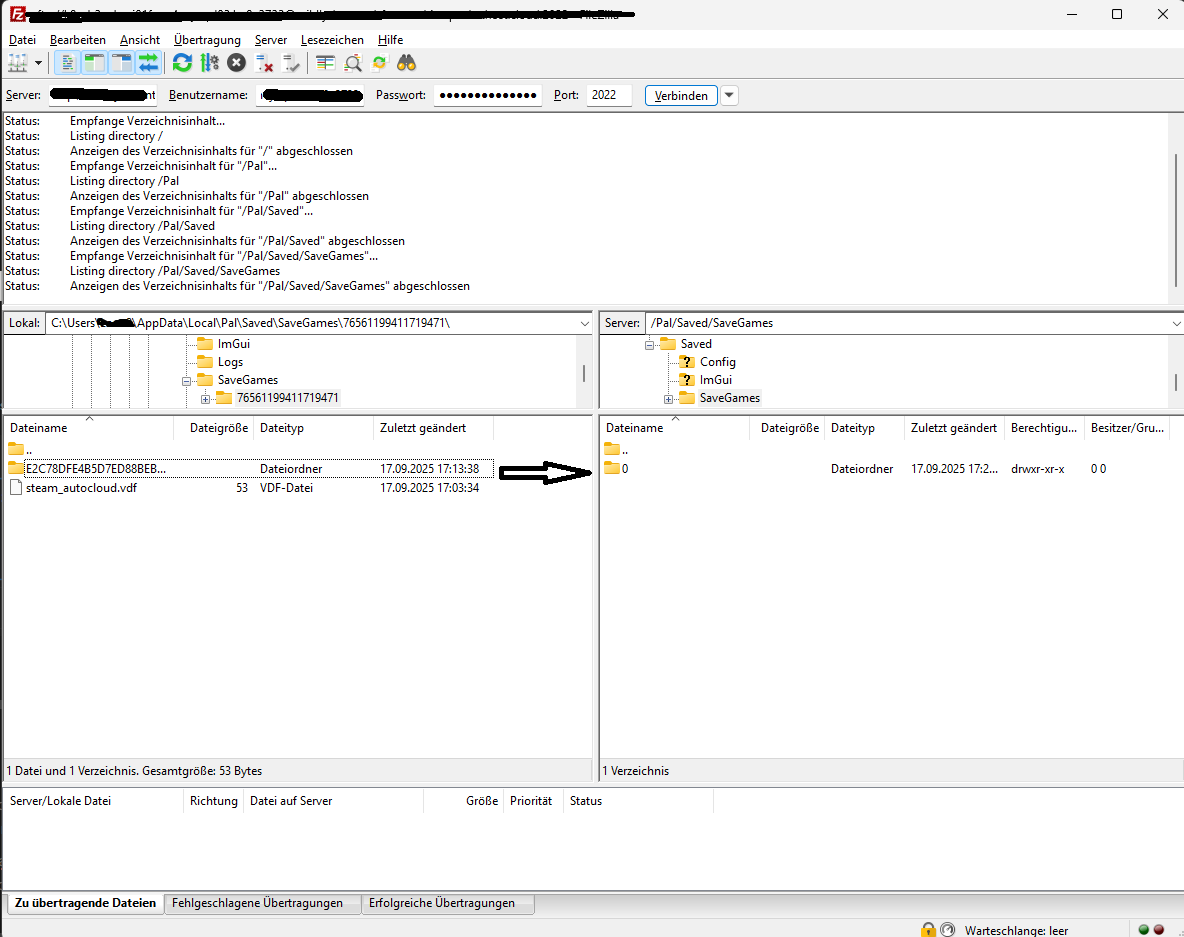
Inside this file, you’ll see a long folder name like E2C78DFE4B5D7ED88BEBDF9A372F820E - that entire folder is your world (contains Level.sav, WorldOption.sav, etc.).
Stop the server
Use your hosting control panel to fully stop the Palworld server.
(Uploading while running = corruption speedrun.)
Back up the server’s current world (recommended)
On the server: Palworld/Pal/Saved/SaveGames/0/

Download or rename the existing world folder so you can roll back if needed.
Upload your local world to the server
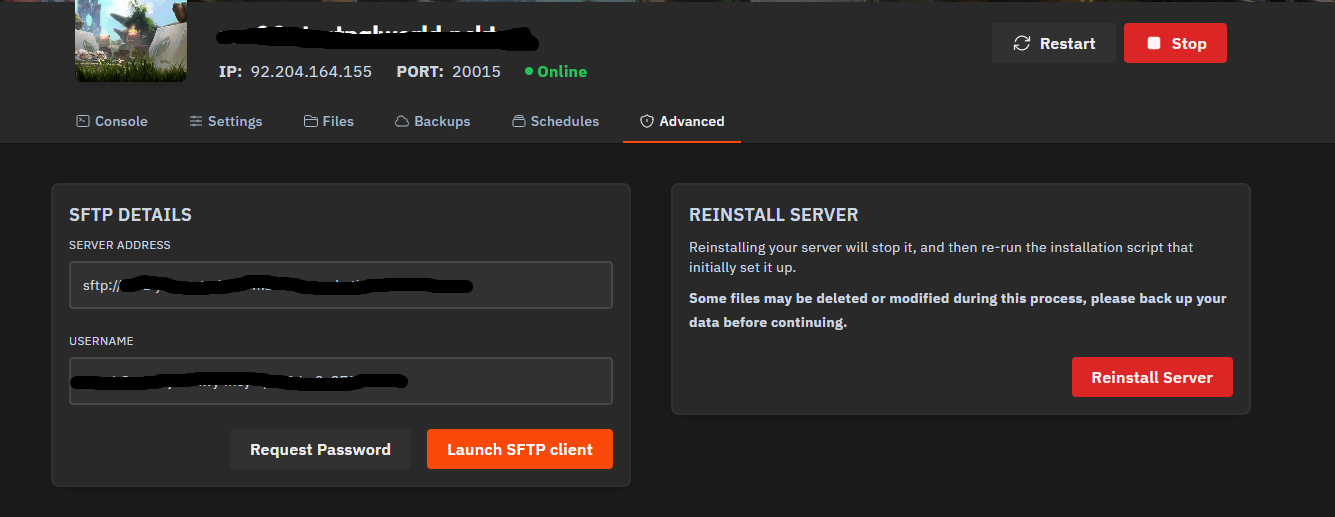
Connect via SFTP
(If you are not familiar with SFTP, we have a guide on how to use it: https://xrealm.com/en/blog/farming-simulator-25-how-to-use-sftp-to-transfer-data)
Path on server: Palworld/Pal/Saved/SaveGames/0/
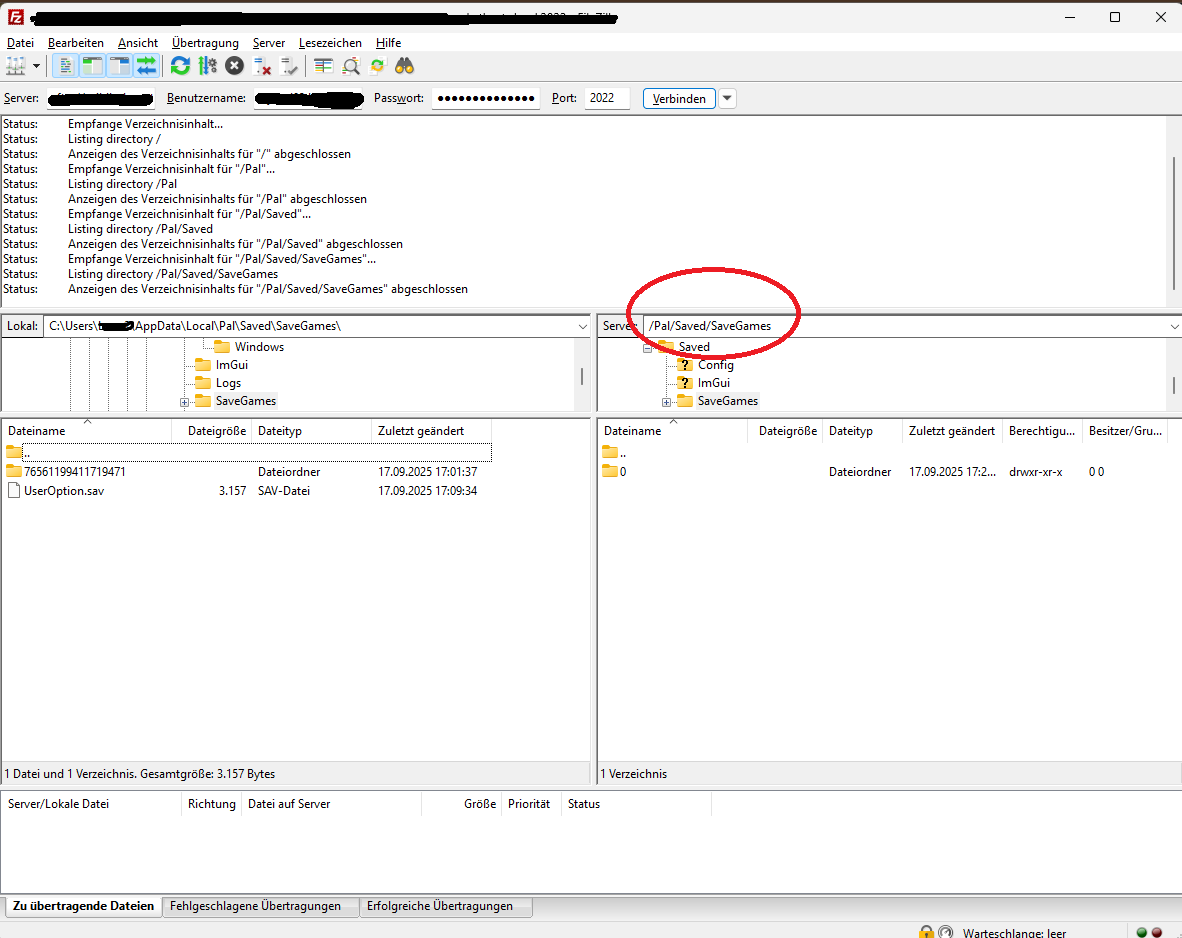
Upload your local world folder (the long hash name) into this 0 directory as a folder, not just loose files.

Point the server at your uploaded world
Go to: Palworld/Pal/Saved/Config/LinuxServer/
Edit GameUserSettings.ini.
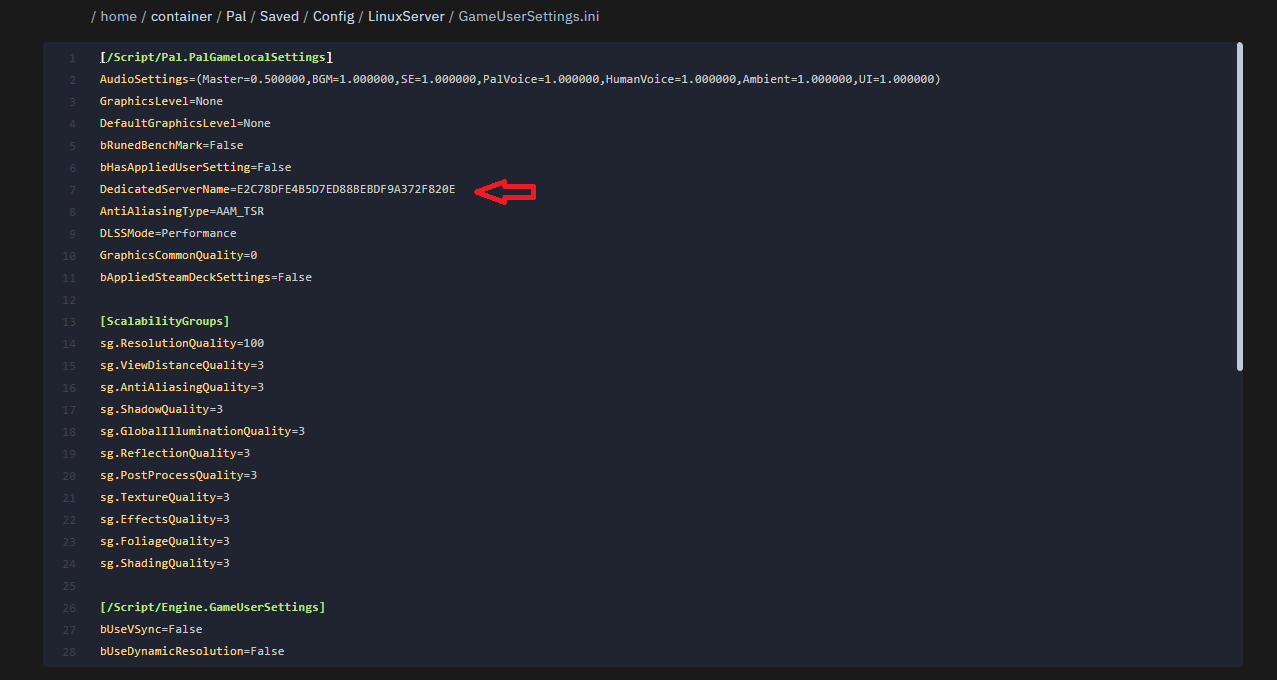
Find: DedicatedServerName=CURRENT_NAME
Replace CURRENT_NAME with the exact folder name you uploaded (e.g., E2C78DFE4B5D7ED88BEBDF9A372F820E).
Save the file.
Start the server
Start it from your panel.
Join the server — you should load into your existing base/progress.